From your bookshelf to a finished image
Turn a Goodreads CSV into a monthly reading recap
Use your own export to make original book covers or a shelf of typeset spines. Choose a past month, a year or your full list, then download PNG pages. You do not need a Library Ledger account or a public Goodreads profile.
Example only: public-domain book titles with our own typographic artwork. Dates, ratings and reading statuses are illustrative, not a reader’s history or a testimonial. Imports are processed in your browser.
Step 01
Get the original CSV from Goodreads
- Sign in to Goodreads on its desktop website and open My Books.
- Under Tools, open Import and export, then select Export Library.
- Wait for the export to finish. Download the resulting CSV using the dated export link; large libraries can take longer.
The export belongs to your Goodreads account. Library Ledger does not sign in to Goodreads or read a public profile. Keep the original column headers. Start with Goodreads’ import/export page or its official CSV export help discussion if your account shows a different screen.
Step 02
Import the file and check the book count
In the recap maker, choose Books → Import CSV and select your original file. Review the import summary before editing. Do not upload the file to a sharing service or send it to us.
| Goodreads field | How this walkthrough uses it |
|---|---|
| Title / Author | The book’s label and original typographic cover. A title is required. |
| Date Read | A finish date such as 2026/09/14 or 2026-09-14. Blank or ambiguous values remain undated; Date Added is not substituted. |
| My Rating | Your rating from 1–5. Goodreads’ 0 means unrated; it is not displayed as a zero-star review. |
| Exclusive Shelf | read, currently-reading or to-read. “Only books on the read shelf” controls which enter the recap. |
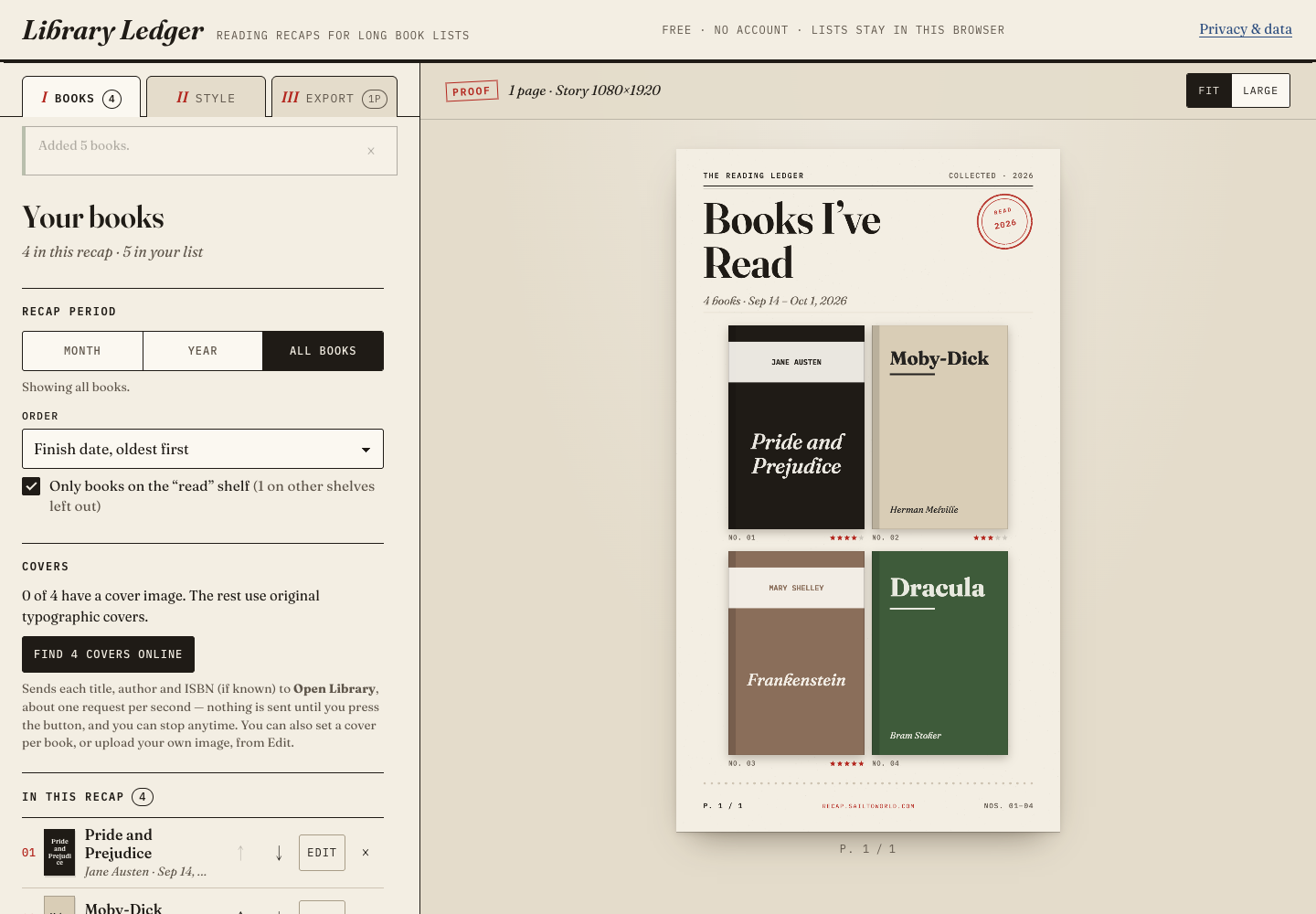
The example imports 5 books: four read books and one to-read book. With the “Only books on the read shelf” filter enabled, 4 books appear in the recap. For your own data, the file summary is the source of truth; invalid dates are reported rather than guessed.
Step 03
Choose a month without losing the rest of the list
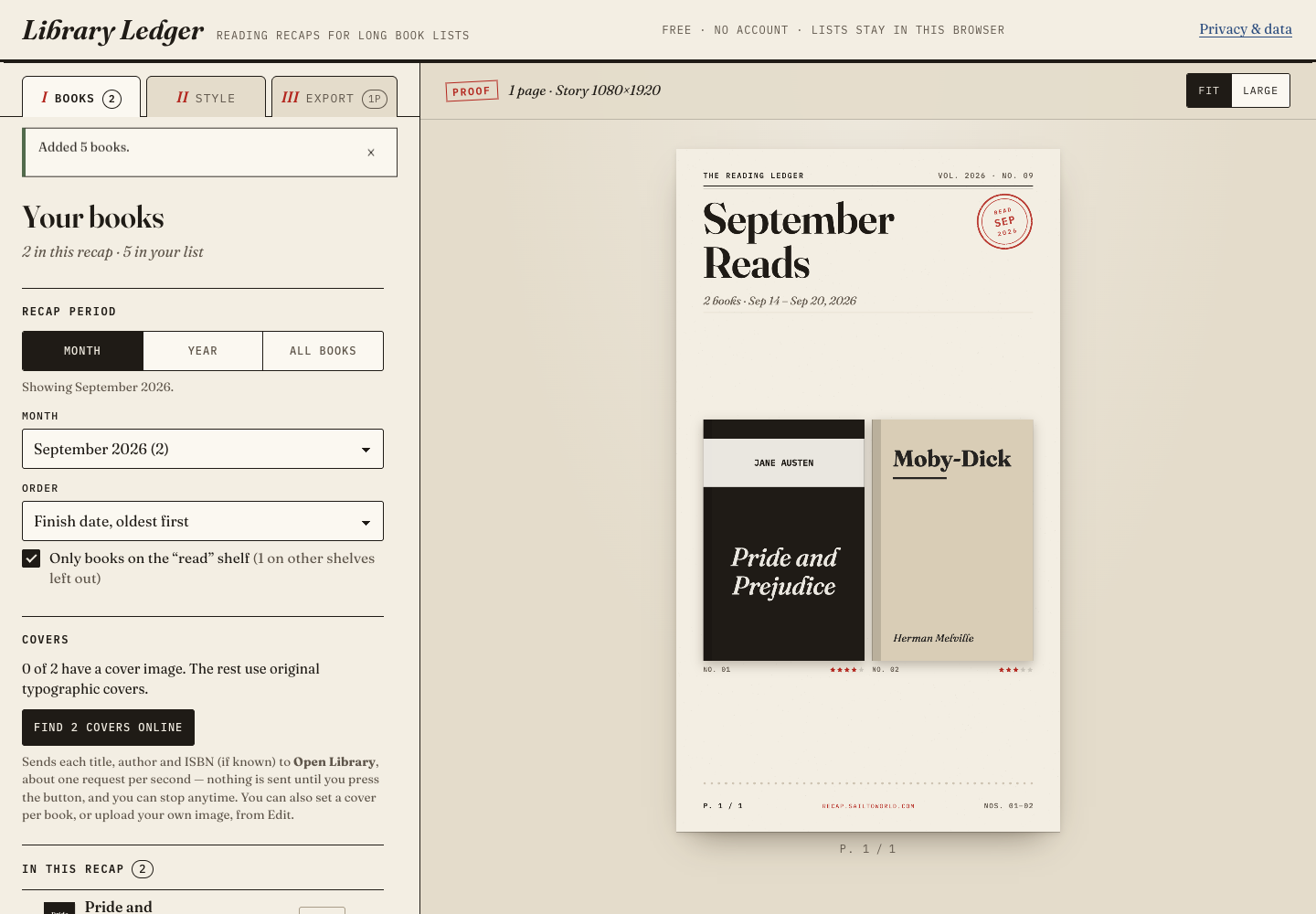
A first import spanning months, years or undated books starts at All books. A first import entirely within one month starts with that month. Adding books later keeps the filter you chose.
- September 2026: Pride and Prejudice and Moby-Dick — 2 books.
- October 2026: Frankenstein — 1 book.
- Year 2026: the 3 books with a finish date in 2026.
- All books + the read-shelf filter: all 4 read books, including undated Dracula.
Turn off the read-shelf filter if you want to include the to-read Alice’s Adventures in Wonderland. An undated book will not appear in a month until you add a finish date in its editor. Switching filters changes the selection and period label, not the imported library.
Step 04
Pick a layout that works for your list
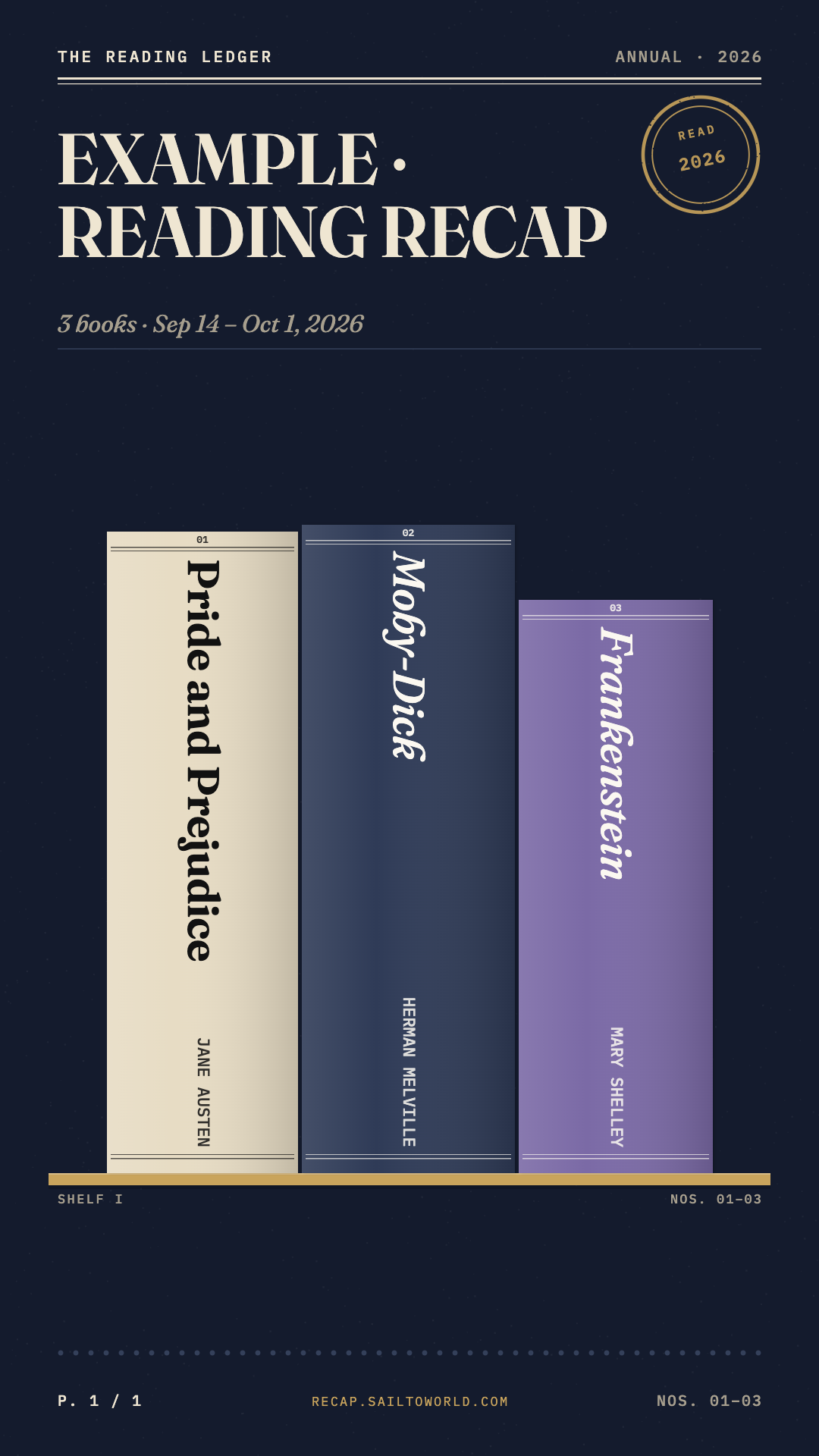
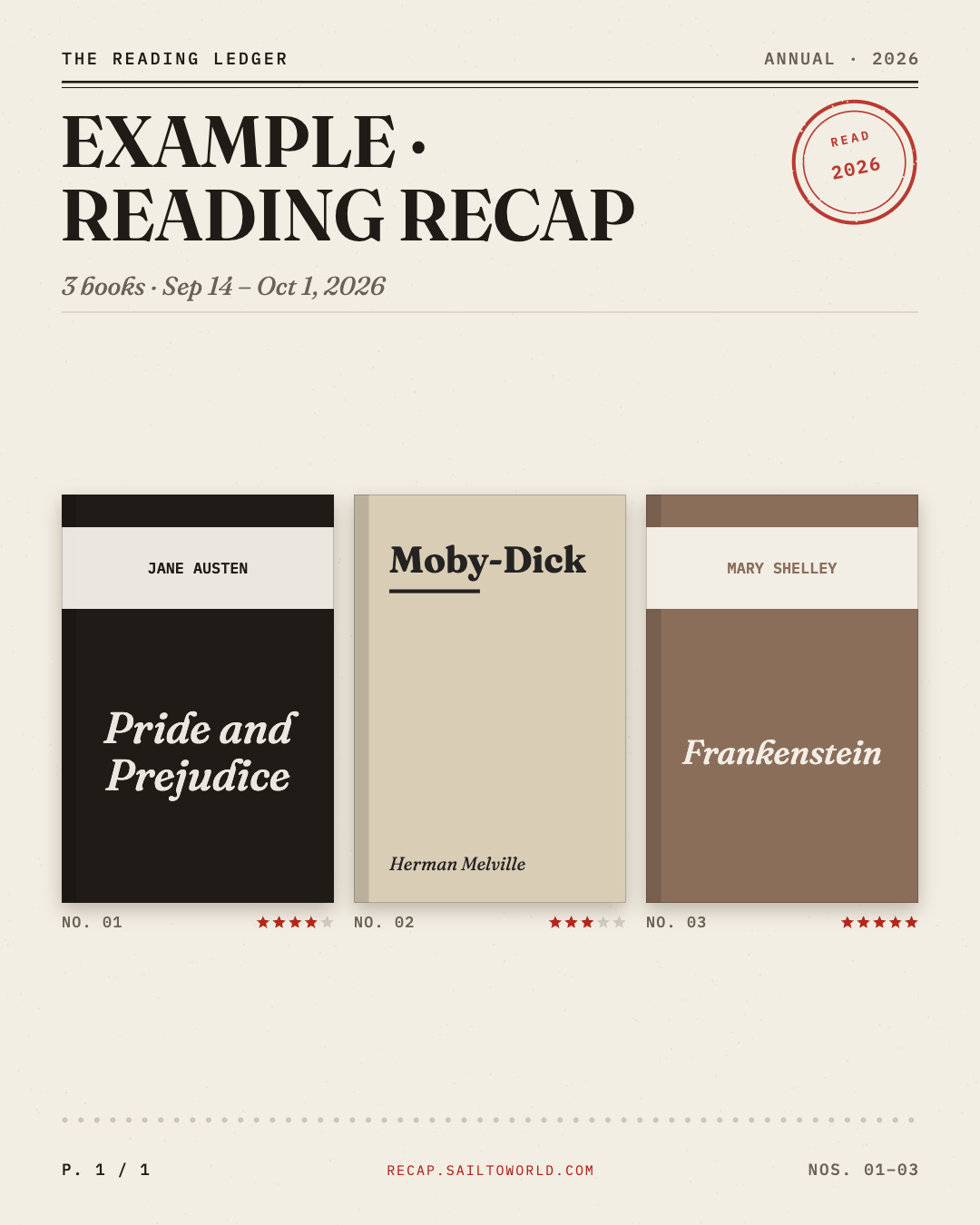
Open Style. Cover wall uses original typographic covers when you have no images. Spine shelf creates original book spines without cover requests. Checkout card makes a dated list; Stats shows only the figures present in your data.
Select Year 2026 for the three dated books in the example. Try Spine shelf → Story → Night Stacks with a short list, or Cover wall → Portrait → Ledger. Story exports at 1080 × 1920, Portrait at 1080 × 1350 and Square at 1080 × 1080. Edit the title and handle here. You can turn the domain signature off.
Step 05
Download PNG pages, or the whole recap as a ZIP
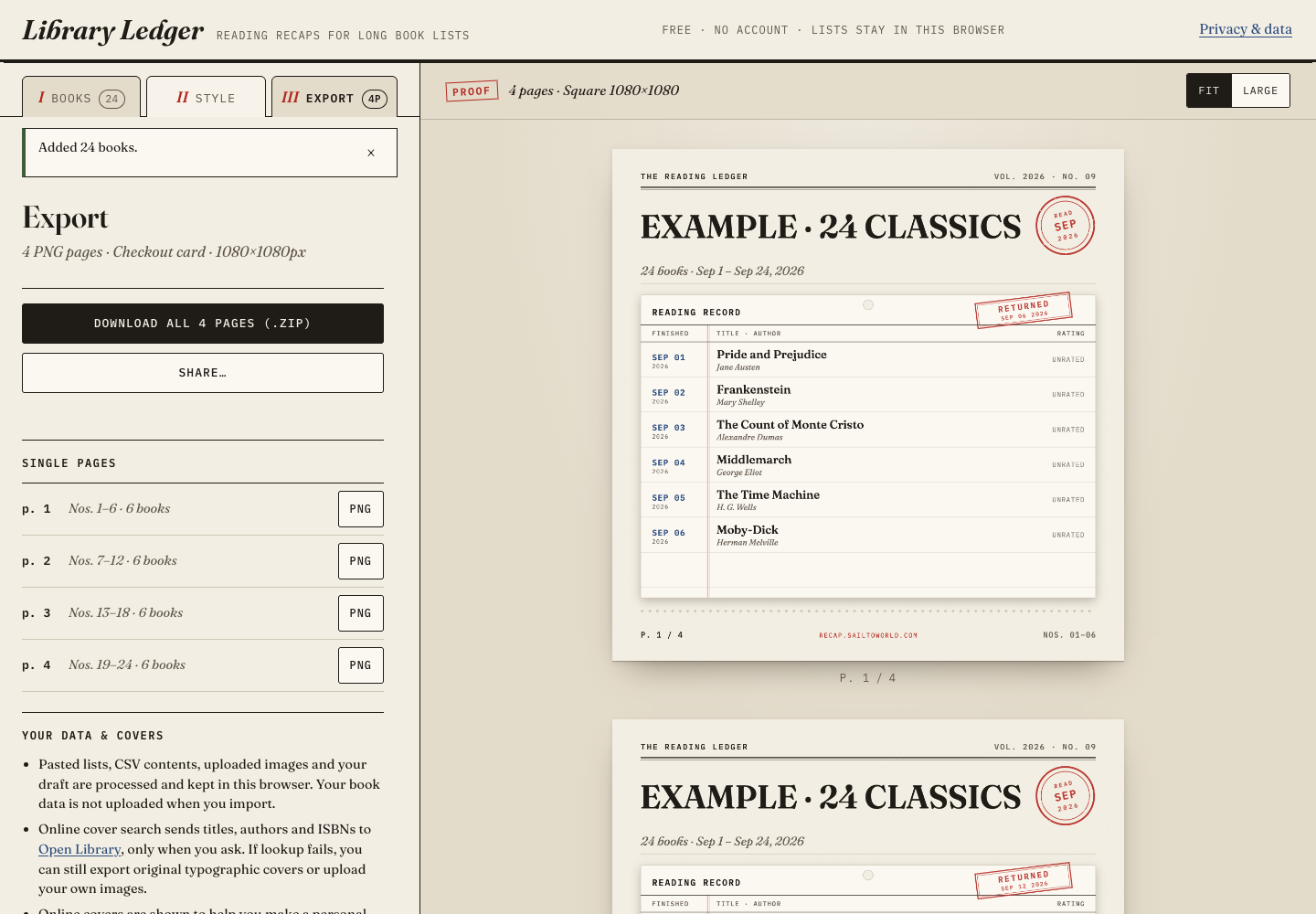
Open Export and check the page count and dimensions. For one page, choose Download PNG. Longer lists paginate automatically; choose the all-pages ZIP button or save individual pages.
The preview and download use the same renderer. “PNG ready” or “ZIP ready” means the file was generated and a download requested. Allow the browser download if prompted, then check your downloads folder. Save or upload those files to your preferred social app yourself.
Try the 24-book example CSV with Square and Checkout card to see pagination. It uses public-domain titles, demo dates and no publisher cover artwork. Its verified ZIP contents are shown below.
Before you use your own export
Can my Goodreads profile stay private?
Yes. You export your own CSV while signed in to Goodreads; Library Ledger imports the file locally and does not require a public profile.
What if a cover is missing?
Keep the original typographic cover or use Spine shelf. You can upload your own image or explicitly request an online cover. Optional search sends book search terms, such as title, author or ISBN, to Open Library; image availability and rights vary. Importing does not start a lookup.
Will my draft appear on another device?
No. The list and settings are stored in this browser, and cover images use local browser storage. Private browsing, storage limits or clearing browser data can remove them. Downloaded files are your copy; a browser draft is not a backup.
Are my book titles sent in analytics?
No. The tool’s optional first-party measurement sends fixed usage categories, not CSV contents, titles, images or filenames. Privacy & data lets you disable it. The tutorial itself does not send usage events.
Does this upload images to Instagram or TikTok?
No. It prepares downloadable files. A browser’s supported system share sheet can hand files to another app, but it does not prove a public post was published.